
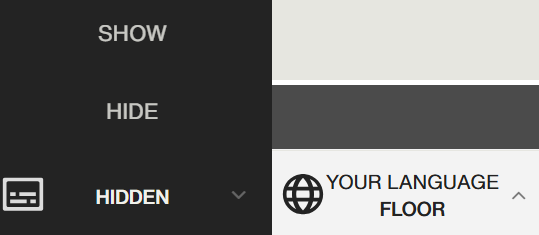
1. Choose your preferred Language (bottom-right corner)
- You will hear your preferred language either from the active speaker or from the simultaneous interpretation.
- Different languages will be available at the event depending on how the event creator configured the session
- The "Floor" language is the original audio without interpretation
2. Live Captions
If this feature was activated by the event creator, you will be able to show/hide AI-based captions in the language you selected.
3. Request the Floor if you wish to speak
Audiences cannot be heard or seen by default. However, they can request to be promoted to the Speaker role inside the event, by pressing the "hand" icon. The moderator will decide if that is possible for the event's agenda; if that's the case then the audience can intervene by voice and video inside the event
4. Interface Language (top-right corner)
Choose in which language all of the features will be displayed, including on the dashboard or login page.
5. Speaker List
Press to see the list of all speakers invited to the event
6. Live Technical Support
Opens a private chat with the Boostlingo Events staff for technical support.
7. Event Slides
They will be shown on the event if they are uploaded in advance by the event creator. Alternatively, the moderators or speakers can use screen sharing.
8. Magnifying Glass
- When pressed, event slides or the video feed from the active speaker (webcam or screen-sharing) will go on full-screen. To exit the full-screen mode, you can press "ESC" on your keyboard or the "X" that may appear when you put your mouse cursor on the top edge of the screen, depending on your browser.
9. Chat Channels
Choose which one you would like to chat with in any language (learn more about chat channels). The event's moderator may provide guidance on which chat channel should be used.
10. Polls
The moderator can submit questions with options for you to answer during the event.
To translate the Chats and Polls that you receive
Please write to events.support@boostlingo.com if you have any questions.
Comments
0 comments
Please sign in to leave a comment.