
How to access the Operator Panel and the event as an Operator
To access the Operator Panel, log onto the Boostlingo Events dashboard. From there you can press the three dots on the right side of the event and select "Monitor". In addition to that, you can also click on "Join" to enter the event without broadcasting an audio/video feed, but with similar permissions as a moderator:
From the portal, you can also "Monitor" to access the Operator Panel:
Please note: the page can only be accessed by the event creator and the designated operator(s).
Learn more about how to assign operator(s) here.
Operator Controls in the Event
As an Operator logged on directly to the event, you can:
- Start, pause and end the event - Please coordinate with the moderator in case you need to help them with this responsibility.
- Start or pause the recording for your event - Please check with your Account Manager or Boostlingo contact regarding the applicable fees for enabling this feature
- Monitor the event and chat with all participants in the event.
However, participants online will not be able to see and hear you.
- Control Slides
Operator Panel Interface
1. Landing page and event details
- Go back 10 slides
- Previous slide
- Show or hide uploaded slides
- See the current slide number
- Next slide
- Jump forward 10 slides
- Jump to a specific slide number
For example, jump to slide number 2.
Top right quick control:
- Show or hide uploaded slides
- View the general chat
- Start or pause the event
- Stop the event (once ended, cannot be undone)
- Record the event
2. Speaker controls 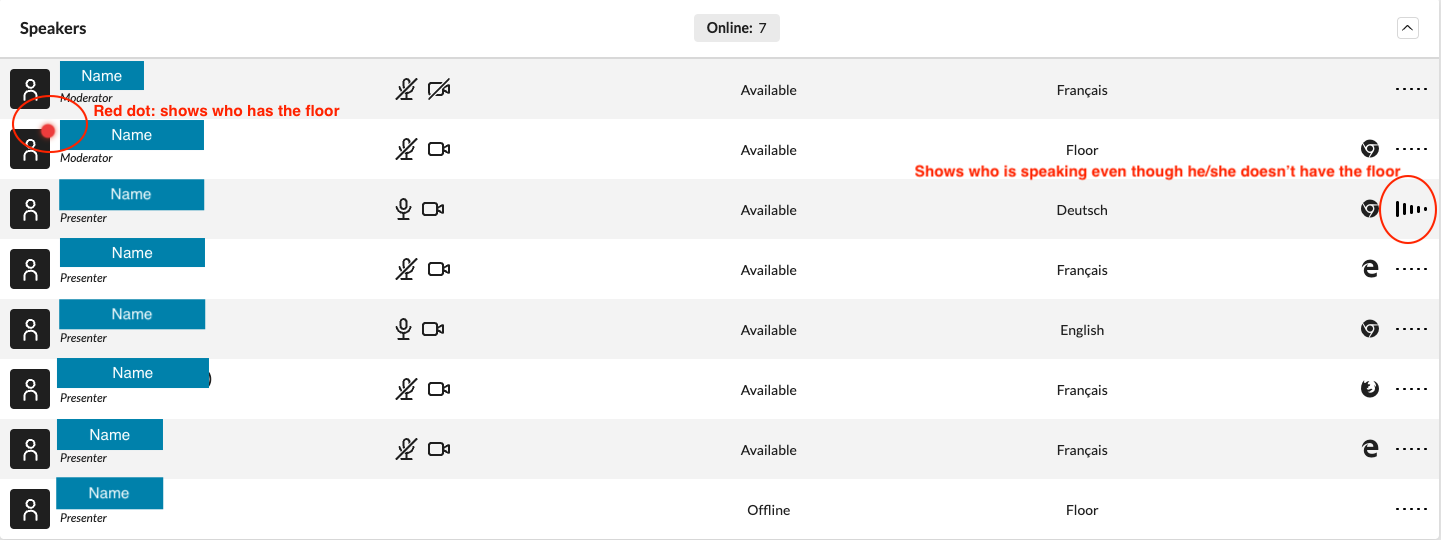
- Check the user role
- Mute / unmute
- Turn on / off the camera
- Check connection status (offline/available/idle)
- Check which language channels speakers are listening to
- Check the browser being used by the user
- The Blue bubble shows who is having a live support chat with Boostlingo staff
3. Specific User Controls
The buttons above can be useful to:
- Restart Connection - Reloads the user's audio and video without refreshing the browser
- Refresh User - Fully reloads the page/platform for the use; it is highly recommended in case of any technical issues
- Camera and Microphone controls - Overrides the user's devices. We respect privacy and our technicians do not use these unless the user requests it over the support chat (e.g. if their devices don't work)
- Turn force publish on - This is applicable before the event is started or if the speaker/moderator is not part of the gallery of panelists. It allows the operator to monitor the audio and video for 30 seconds
- Change users microphone/speakers - Allows the selection of another device if the default ones are not working for any reason (could be the wrong device)
- Change user role - Promotes or demotes the user to the right role; the event creators should assign the roles in advance, yet operators can assist if that was not the case or the user joined the event via guest access instead of logging onto their account
If the speaker is sharing his/her screen:
Error detected
When a user is experiencing an audio or video issue, operators can mark a red cross on the Operator panel. While at the same time, people will get notified by an orange icon inside the meeting:
4. Interpreter virtual booth controls (audio channels)
Monitor the interpreter microphone switch process:
In case of an emergency: you can force switch the microphone for either interpreter
5. Audience control
Allows monitoring online users with this role.
Operators can refresh their connection, change their role or kick them out of the event
6. Recording channel display
Indicates which languages are being recorded; we recommend not adjusting any settings there during the event.
7. Operator Status
Shows online users connected with this role. For assigning more users with this role, you can follow this support article
8. AI Feature Status (if enabled)
Allows starting/pausing/resuming the AI-based interpretation and/or captions in case the moderator is not available to do so. For events with integration those controls are missing, since the process is automated.
Comments
0 comments
Please sign in to leave a comment.